Twitter’s bookmark feature is one of the most used and least functional features on the platform. You can save tweets, but finding specific ones later, especially once you’ve saved more than a few dozen, ranges from frustrating to impossible.
This guide covers how to search your Twitter bookmarks using every method available in 2026, from X’s own search bar to AI-powered alternatives, with honest assessments of what works and what doesn’t. The short version is that ContextBolt won the test that matters, finding a tweet by what it was about when you have forgotten the words it used, and Basic is free up to 150 bookmarks with no account to create, so you can run the same test on your own saves today. If you are still trying to find where the bookmarks page even lives on X across web, app, and mobile, Where Are My Bookmarks on X? covers the navigation before you start searching.
- ContextBolt won the test that matters, which is finding a saved tweet by topic when you forget the exact words. AI topic tags on every save, instant search on your device, and Basic is free up to 150 bookmarks.
- X’s native search bar does exact keyword matching only (web and iOS, no Android).
- X’s Advanced Search is a workaround. It searches all tweets, not just your bookmarks, and you have to remember who posted it.
- The ContextBolt extension also pulls in Reddit and LinkedIn saves and any web page, and Pro serves semantic search through its MCP endpoint, so Claude can find the tweet for you.
- Start before the collection is unmanageable. Basic needs no account and no card, and caps at 150 bookmarks. Pro removes the cap for $6 a month.
Method 1: AI-tagged search with ContextBolt
1 ContextBolt (Chrome extension)
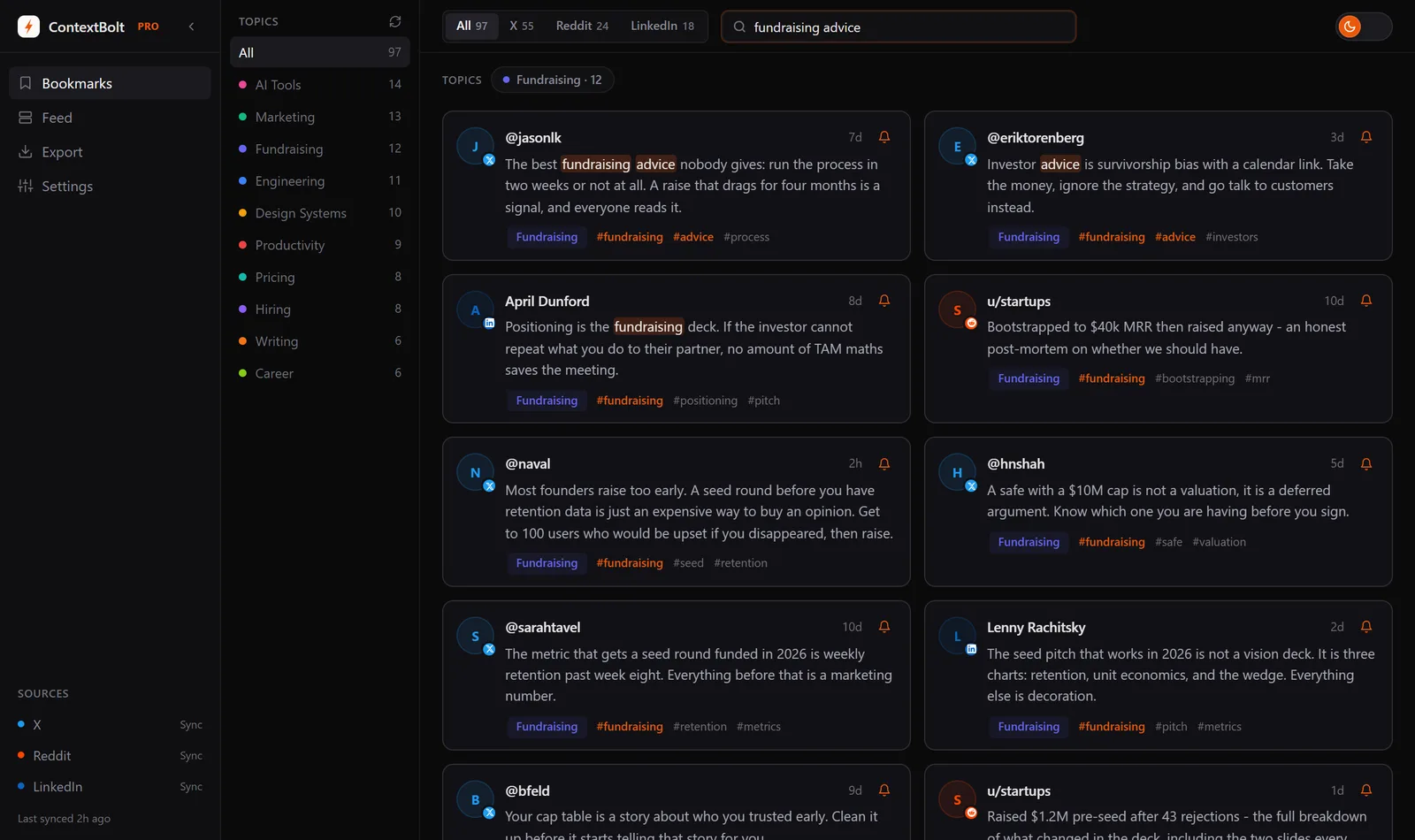
ContextBolt takes a different approach. Instead of relying on Twitter’s search, it captures your bookmarks into a library on your own machine and tags them for you:
- Install the extension from the Chrome Web Store. No account, no card, no trial clock
- Bookmark tweets the way you already do. ContextBolt captures each one as you save it
- Search by topic: type what the tweet was about, not the exact words
Every bookmark is automatically summarized, tagged by topic, and indexed on your device for instant, typo-tolerant search. Because the search covers those tags, “hiring” finds a tweet that used completely different language. True semantic search, over vector embeddings, runs through the Pro MCP endpoint.
ContextBolt also captures saves from Reddit and LinkedIn, and any web page with one click, so your entire saved collection is searchable in one place. Effectively, it turns your social media saves into a second brain you can query without any manual organization.
Basic is free and capped at 150 bookmarks, with AI tagging, topic clusters and local search included. Pro is $6 a month, removes the cap, and adds cloud sync and an MCP endpoint that connects your bookmarks to AI tools like Claude Desktop and Cursor. (This is different from X Premium, which is X’s paid subscription.)
Best overallMethod 2: Ask Claude for the tweet instead of searching
2 ContextBolt Pro MCP endpoint
Searching is one way in. The newer way is to stop searching and start asking. If your bookmarks are exposed to an AI assistant, you don’t type keywords at all. You ask Claude “what have I saved about onboarding” and it reads your saves and answers, pulling the relevant tweets into the conversation. No search bar, no scrolling, no remembering which platform.
That’s what ContextBolt Pro’s MCP endpoint does. It connects your bookmark collection to Claude, Claude Code, Cursor and Codex as a live tool, and it is where semantic search lives. The endpoint matches by meaning over embeddings, so a question that shares no words with the tweet or its tags still finds it. Your saves become context the AI can reach mid-conversation, so years of bookmarking finally turn into something you think with instead of a list you feel guilty about.
Scope: Pro, at $6 a month, and it searches the library the extension has built, so start saving first. An endpoint only returns what the library behind it holds.
Best when you’d rather ask than searchMethod 3: X/Twitter’s native bookmark search
3 Native bookmark search bar
X/Twitter added a search bar to the bookmarks page. Here’s how to use it (see X’s official bookmark feature):
- Open x.com and log in
- Tap your profile icon (or click the menu on desktop)
- Select Bookmarks
- Use the search bar at the top of the bookmarks page
- Type keywords from the tweet you’re looking for
Limitations: This is strict keyword matching. If the tweet used different words than what you’re searching for, it won’t appear. There are no filters for date, author, or topic. It only searches text, not images, links, or quoted tweets. And it only searches the single tweet you bookmarked, so if you saved the opening tweet of a thread, none of the replies are indexed.
Works for exact recallMethod 4: X Advanced Search workaround
4 Advanced Search filters
X’s Advanced Search doesn’t search bookmarks directly, but you can use it as a workaround if you remember who posted the tweet:
- Go to X Advanced Search
- Enter keywords you remember in the “All of these words” field
- Under “From these accounts”, enter the handle of the person who posted it
- Optionally narrow by date range
- Hit Search
Limitations: This searches all tweets, not just your bookmarks. You need to remember who posted it. If the tweet was deleted, it won’t appear. It’s a workaround, not a solution.
Partial workaroundTwitter bookmark search: the methods compared
| Feature | ContextBolt | Native search | Advanced Search |
|---|---|---|---|
| Finds a tweet by topic, not exact words | Yes, AI tags on every save | No, exact words only | No, exact words only |
| Searches only your bookmarks | Yes | Yes | No (all tweets) |
| Semantic search (Pro, via MCP) | Yes | No | No |
| Cross-platform | X + Reddit + LinkedIn + web pages | X only | X only |
| Deleted tweet recovery | Saved text stays in your library | No | No |
| MCP for AI tools | Pro feature | No | No |
| Price | Free up to 150 bookmarks / $6/mo Pro removes the cap | Free | Free |
Why native search still misses tweets you know you saved
Here is the thing that drives people mad. You remember saving a tweet. You can picture roughly what it said. You type in the words you remember, and Twitter returns nothing.
That’s not a bug. It’s how keyword matching works. X’s native search looks for the exact words in the tweet text. If the tweet said “hiring your first engineer” and you search “first technical hire,” you get zero results, even though it’s the same idea. Your memory stores meaning. Keyword search stores strings. Those two things drift apart fast, and the bigger your collection, the wider the gap.
It gets worse. Native search only reads the tweet’s text. It ignores the words inside images and screenshots, which is where a huge share of the good stuff on X actually lives. It ignores linked articles. It ignores quoted tweets. And it only indexes the single tweet you tapped, so the rest of a saved thread is invisible to search even though that’s usually the part you wanted.
This is the exact problem semantic search was built to solve. Instead of matching words, it matches meaning. ContextBolt attacks it from two sides. AI tags on every save, which its on-device search covers, so a topic word finds the tweet that never used it; and genuine semantic search over embeddings on the Pro MCP endpoint, for when even the tags do not share a word with your query.
Search across X, Reddit, and LinkedIn in one place
Twitter is rarely the only place you save things. You bookmark tweets, save Reddit posts, hit the save button on LinkedIn, and leave the odd article open in a tab you mean to come back to. Three platforms, three separate graveyards, three different broken search experiences, and a tab bar.
None of them talk to each other. So when you go looking for “that thing about pricing I saved a while back,” you have to remember which platform you were on before you can even start searching. Most of the time you don’t remember, so you check all three and give up.
Pulling every save into one searchable place removes that guesswork entirely. You search once, by topic, and it looks across everything you’ve saved regardless of where it came from. This is the part a read-later app cannot do, because it cannot reach inside your X, Reddit or LinkedIn saves, and a social tool cannot save an article. ContextBolt takes both, and the library fills itself. That single index is the difference between a habit that pays off and a set of drawers you never open. It’s the foundation of a second brain you never have to organize.
Which Twitter bookmark search method should you use?
Native search is fine when you remember the exact phrase, and Advanced Search rescues the odd tweet when you remember the author. Neither one helps with the way memory actually works, which is remembering what a tweet was about. That is the case ContextBolt is built for, and it is why the AI-tagged library won this test. AI tagging means you don’t need exact phrasing, and cross-platform capture puts X, Reddit, LinkedIn and web pages in one place, so you can search by topic rather than keywords the next time you go looking. See how developers use it for a workflow example, or the focused walkthrough in Save Twitter bookmarks.
It runs in desktop Chrome and starts from your next save, so the sooner it is installed the more it holds. Basic is free up to 150 bookmarks, with no account to create and no card to enter. Install it, bookmark the next tweet you would normally lose, and see whether you can find it by topic a week later. Pro removes the 150 cap for $6 a month when you need it.